
How to Make Your Gaming PC Better: A Step-by-Step Guide
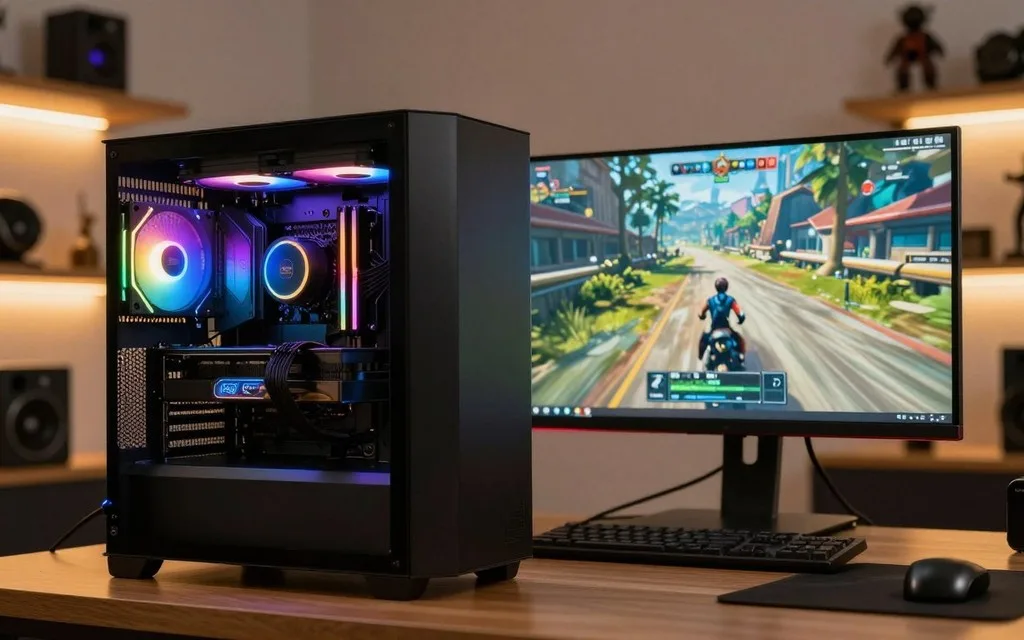
A choppy game does not automatically mean your gaming PC needs a new graphics card. Low frame rates, stutters, long loads, and input lag can each have different causes, so one fix rarely helps every player. You can improve performance by testing settings and checking hardware in a steady order, instead of changing several things at once. 1% lows are the frame rate reached by the slowest 1% of frames during a measured gameplay run. That number can help reveal uneven gameplay that an average FPS reading hides. Start by recording a baseline in a repeatable scene, then check software and hardware before spending money. Make one change, retest the same scene, and keep it only if the result is better. The right settings depend on the game, resolution, and components in your system. A same-scene before-and-after test is the quickest way to tell whether a tweak actually helped.
Key Takeaways
- Measure average FPS and 1% lows before changing settings.
- Test one Windows or game setting at a time.
- Check background activity and temperatures during gameplay.
- Match any hardware upgrade to your actual resolution and target.
- Keep changes only when a repeatable test confirms an improvement.
How to Make Your Gaming PC Better Without Guesswork
A reliable optimization starts with one repeatable game scene, not a long list of tweaks. One change at a time helps you connect a result to the setting that caused it. A quiet training area, a saved replay, or a fixed route through a level works well.
Record average FPS and 1% lows under the same conditions before and after each change. Keep the game, resolution, and scene consistent. Results from a crowded battle cannot fairly compare with a quiet menu or another map.
Change one setting, repeat the same scene, and keep the change only when the measured result improves.
Use this five-step routine to test a specific adjustment without turning the whole system upside down:
- Choose a representative game scene that reflects your usual play.
- Record average FPS and 1% lows in that scene.
- Change one setting, then leave other options alone.
- Reboot when required, repeat the scene, and record the result.
- Keep or undo the change based on the measured result.
Fully optimizing a PC for gaming in 10 minutes is unrealistic. A 10-minute triage can still establish a baseline and check a few low-risk changes, such as a game’s preset or a currently active download.
To optimize a PC for gaming in 2026, assess Game Mode, graphics settings, drivers, and hardware against the specific game and resolution. A setting that helps one title may do nothing in another, so avoid treating a tip as a universal FPS boost.
A short written log makes small changes easier to compare than memory does. Include the date, game scene, resolution, setting changed, and both FPS results. Save your baseline results so later changes can be compared against the same conditions.
Which Windows 11 Settings Are Worth Testing?
Windows 11 Game Mode is a sensible first test, but its effect is not identical across PCs and games. Test each option on its own, since game, driver, and hardware differences can change the result.
Built-in Windows settings are experiments, not guaranteed frame-rate boosts. Start with Game Mode, then consider graphics features only if your PC supports them. Best performance power mode can use more power and make a laptop run warmer.
Start with Game Mode and power mode
Find Game Mode under Settings > Gaming > Game Mode in Windows 11. Turn it on, then replay your measured scene. Power mode choices appear in Windows power settings; Best performance may suit a plugged-in desktop session better than a warm laptop on battery.
To optimize a PC for gaming on Windows 10, you can test its gaming settings, but Windows 10 support ended on October 14, 2025. Windows 10 instructions do not share every Windows 11 path, so do not assume a menu name or graphics feature is identical across versions.
Test graphics features one at a time
On supported Windows 11 systems, Hardware-Accelerated GPU Scheduling is under Settings > System > Display > Graphics > Change default graphics settings. Optimizations for windowed games can reduce presentation latency in compatible games, but the benefit depends on compatibility.
| Feature | Windows 11 path | Intended role |
|---|---|---|
| Game Mode | Settings > Gaming > Game Mode | Prioritize gaming activity |
| Hardware-Accelerated GPU Scheduling | Settings > System > Display > Graphics > Change default graphics settings | Adjust GPU scheduling |
| Optimizations for windowed games | Settings > System > Display > Graphics | Reduce presentation latency in compatible games |
Windows Update automatically installs the latest supported DirectX components, so keeping Windows updated is usually enough to update DirectX. Auto HDR can enhance image quality, but it does not raise FPS. Leave Auto HDR on for image preference, not as a way to raise frame rates.
Which Background Apps Should You Close Before Gaming?
A browser with many tabs, a download, or a sync task can compete with a game for system resources. Close avoidable activity when it affects performance, but do not stop processes you cannot identify.
Task Manager shows which apps are using CPU, memory, disk, and network resources. Open its Processes tab and sort a column to see which process is busiest. A high reading alone does not prove an app is safe to close.
Disable startup apps you do not need
In Windows 11, review startup apps under Settings > Apps > Startup. Turn off apps you recognize and do not need when signing in. Disabling a startup app affects future sign-ins; it does not close that app immediately during the current session.
Before a gaming session, review these four common sources of avoidable activity:
- Unused browser tabs that play video or refresh content.
- Active downloads that use your network or disk.
- Cloud-sync activity moving a large group of files.
- Nonessential apps visible in Task Manager.
Check live resource use safely
In Task Manager’s Processes tab, select CPU, memory, disk, or network to sort by that resource. This can reveal an update or app competing with a game. Check the process name and what it does before closing anything.
Ending unfamiliar Windows processes can disrupt the system or remove a feature another app needs. Leave security software running, and do not stop services required by the game. Some online games rely on anti-cheat services that must stay active.
Close only apps you recognize and can reopen safely.
Are Your Graphics Drivers and GPU Assignment Set Correctly?
A current driver can address compatibility problems, but install it from the hardware maker rather than a third-party download site. Use official downloads from NVIDIA, AMD, or Intel for the matching GPU.
Laptop owners should check the laptop maker’s support page first when graphics drivers are customized. A manufacturer-specific driver may include settings or power behavior designed for that model.
After the driver check, confirm that the game uses the intended GPU. This matters most on systems with more than one graphics option, such as a laptop with integrated graphics and a separate gaming GPU.
Windows 11 lets you assign a game to the high-performance GPU through its graphics settings. Choose the game’s application entry and set its graphics preference to high performance. The exact benefit depends on whether Windows had selected a different GPU.
Do not assume a game is using the stronger GPU simply because it launches. Check the assigned preference, then compare gameplay under the same scene and display settings. Restart when the installer requires it, then compare the same game scene with your saved baseline.
Which In-Game Settings Should You Lower First?
If a game is struggling, shadows and ray tracing are often better first experiments than turning every visual option to its lowest setting. Protect image clarity by changing one demanding setting at a time at your target display resolution.
Built-in presets are useful starting points, not final answers for every PC. Apply a preset, test a scene, then adjust specific options until the game meets your performance target without losing details you care about.
Match resolution and upscaling to your hardware
Try resolution scale or an upscaling mode if the GPU cannot keep up at the game’s output resolution. DLSS, FSR, and XeSS can render below the display’s output resolution, but image quality and performance depend on the game and selected mode.
Test the available mode at your target resolution rather than assuming every upscaler looks alike. A more aggressive mode may raise frame rates while making fine edges or distant objects look softer. The best game settings for your PC are the ones that meet your target while keeping the picture readable.
Reduce costly effects before sacrificing clarity
A low-end PC can often gain performance by reducing expensive effects before lowering every setting. Try these adjustments in order, keeping your preferred texture and color choices intact where possible:
- Resolution scale or upscaling mode.
- Shadows and lighting quality.
- Ray tracing, which can be demanding.
- Anti-aliasing and ambient occlusion.
Shadows, ray tracing, anti-aliasing, and ambient occlusion all trade visual detail for performance when lowered or disabled. Their cost differs by game, so a setting with a large effect in one title may barely change another.
For a low-end PC, test the built-in low or medium preset, then raise individual options that matter most to you. Keep the setting change only when the same scene improves without making the image unacceptably soft or unclear.
Can Your Monitor Display the Frame Rate Your PC Produces?
A high-refresh display can show smoother motion only when the PC supplies enough frames to use it. Refresh rate sets a ceiling for how often the screen refreshes, not a promise that the PC will sustain matching FPS.
Choose display features around the games you play and the frame rates your system can deliver. A 240 Hz monitor does not make a PC produce 240 FPS, but it can show those frames when the system renders them.
The ASUS ROG Swift OLED PG32UCDM Gen3 is a 32-inch QD-OLED with 3840 x 2160 native resolution and a maximum 240 Hz refresh rate. The LG 27GX790B-B is a 27-inch 2560 x 1440 OLED with a 540 Hz refresh rate, plus a dual mode reaching 720 Hz at 720p.
Variable refresh rate, or VRR, requires a VRR-capable monitor and can reduce tearing when frame rates are unstable. Low input lag matters for reaction-based games because it keeps the response between your input and screen movement short.
Monitor overdrive can improve pixel transitions, but its highest setting may create inverse ghosting. Backlight strobing can improve motion clarity, yet it typically disables VRR and reduces perceived brightness.
Windows Enhance Pointer Precision can make mouse movement speed-dependent. Competitive players may prefer to test it off for more consistent aim. Try medium or fast overdrive before the monitor’s highest setting, which can introduce inverse ghosting.
How Do You Keep Cooling From Throttling Performance?
If performance drops during a long session, check temperatures before assuming the hardware is too weak. Heat can reduce speed when a component throttles to manage its temperature.
As a general rule of thumb, aim to keep a GPU below roughly 85°C and a CPU below roughly 90°C during gaming when practical. These are approximate guides, not universal safety limits; follow the component maker’s specific limits.
Restricted airflow, dust on filters and fans, or a poor fan curve can contribute to high temperatures. The pattern matters: a game that runs well at first and slows after a long session deserves a temperature check during that same load.
Use this cooling checklist to inspect the system without making a risky change:
- Clean dust from vents and filters.
- Confirm that case intake and exhaust airflow are clear.
- Monitor CPU and GPU temperatures during the same demanding scene.
- Adjust fan curves gradually and check the result.
A sudden jump in fan noise can also help you spot a change in cooling behavior. Check that fans spin freely and that cables do not block their path. Do not judge temperature from an idle desktop, since gaming creates a different load.
If temperatures stay high after cleaning and airflow checks, investigate the cooler or fan setup before attempting an overclock.
Will an SSD or Free Space Improve Gameplay?
An SSD can make loading feel faster, but it is not a direct fix for a GPU-limited frame rate. Storage helps in different ways: an SSD can improve game loading and data streaming compared with an HDD.
Moving a game from an HDD to an SSD may reduce loading and data-streaming stutter, but it does not automatically raise average FPS. A graphics limit remains a graphics limit even when the game loads quickly.
Free space helps you manage game installs and updates without constantly removing files. It is useful for storage management, but extra space alone does not promise smoother frames during gameplay.
Windows 11 includes Storage Sense and Disk Cleanup for removing unneeded files. Review what each option will remove before clearing anything you might want to keep. These built-in tools can help reclaim space without installing a separate cleanup app.
SSDs do not need manual defragmentation like HDDs. Check which drive holds the game before buying storage to address a problem caused by graphics settings.
How Do You Find the Component Bottleneck?
A useful bottleneck check compares the resource load with the frame-rate result in the same game scene. Look at the whole result, because an average can hide stutters that hurt play.
At 1080p, gaming is often CPU-limited; at 1440p and 4K, the GPU is more often the bottleneck. These are common patterns, not rules for every title or system. A game’s engine and settings can change which component reaches its limit first.
Compare CPU and GPU limits at your resolution
Monitor CPU, GPU, memory, and disk use while repeating the same scene. A busy GPU can point to a graphics limit, while a heavily loaded CPU may hold back frame rates at lower resolutions. Check for memory or storage activity if the game pauses or streams assets unevenly.
A GPU comparison should consider raw benchmark performance at your target resolution alongside performance per dollar. The 2026 performance-per-dollar score uses normalized benchmark score divided by current retail price, multiplied by 100. Its performance data is normalized to the RTX 5090 as 100 and covers 1080p, 1440p, and 4K.
Read average FPS and 1% lows together
In Black Myth: Wukong at 1440p High, these GPUs produced the following results:
| GPU | Average FPS | 1% lows | Test condition |
|---|---|---|---|
| Radeon RX 9070 | 73 FPS | 64 FPS | Black Myth: Wukong, 1440p High |
| GeForce RTX 5070 | 68 FPS | 60 FPS | Black Myth: Wukong, 1440p High |
| Radeon RX 9070 XT | 82 FPS | 73 FPS | Black Myth: Wukong, 1440p High |
| GeForce RTX 5070 Ti | 84 FPS | 74 FPS | Black Myth: Wukong, 1440p High |
Those benchmark results apply to that game and test setting, not every game you might play. Average FPS alone can hide frame-time dips, so 1% lows add useful context about consistency.
A value score is not the same as meeting your target frame rate. The performance-per-dollar calculation also does not account for VRAM, which can affect performance in future games. Judge a GPU against the resolution and game you actually play, not a single overall score.
Which Upgrades Fit Your Resolution and Budget?
The right upgrade is the one that removes the measured bottleneck at the resolution you want to play. Match the card to the display and your performance target, then weigh the rest of the system.
As of October 2026, the Radeon RX 9070 GRE was listed at $569.99, while the GeForce RTX 5070 was listed at $779. Listed prices do not tell you whether a card meets your game’s frame-rate target, so compare the raw results too.
Choose the GPU for the display you own
Use resolution classes as a starting point, not a promise for every game. The following pairings reflect practical 2026 options for common display targets:
| GPU model | Resolution class | Practical fit |
|---|---|---|
| GeForce RTX 5060 | 1080p | Standard 1080p gaming |
| Radeon RX 9060 XT 8GB | 1080p | 1080p gaming |
| Radeon RX 9070 | 1440p | 1440p gaming |
| GeForce RTX 5070 | 1440p | 1440p gaming |
| Radeon RX 9070 XT | 4K | 4K gaming |
The Radeon RX 9060 XT 16GB suits 1080p and light 1440p. Intel Arc B580 can handle 1080p and higher resolutions with suitable settings. Radeon RX 7600 suits modern 1080p games at 60 FPS, but performs poorly above 1080p.
A 3440×1440 ultrawide generally calls for a higher-end 1440p-class GPU. A 5120×1440 super-ultrawide calls for a 4K-class GPU. Both displays render many pixels, so their demands can exceed those of a standard 1440p screen.
Balance the rest of the system before buying
As of October 2026, the GeForce RTX 5060 Ti 16GB was selling for almost double its $429 MSRP in the worst cases. A high value score cannot make an inflated price fit every budget.
An October 2026 example build paired an Intel Core Ultra 250K Plus with a Radeon RX 7600 for a $924 total, excluding RAM. It used 16GB DDR5-6000, which may limit resource-intensive games. In that build discussion, the RX 7600 averaged well over 60 FPS at 1080p ultra.
Check whether your RAM runs at its rated speed by reviewing its XMP or EXPO memory profile in BIOS. A profile can enable the kit’s rated speed when the system supports it. 32GB can benefit memory-intensive games and multitasking compared with 16GB, especially when several apps remain open.
Check the raw benchmark result and the price together before choosing a card on performance-per-dollar value alone.
Should You Use a PC Optimization Tool?
A PC optimizer is optional, and it should never require blind trust in a one-click performance promise. Understand each change before you let software apply it to your system.
A trustworthy optimizer previews its changes, keeps an audit log, and offers a rollback option. Those features let you review what changed and reverse a setting if a game or device stops working as expected.
Check proposed changes before applying them
Read each proposed action in plain language. A tool should explain which software or system option it plans to alter, rather than grouping many unrelated changes behind a vague “boost” button.
Reject software that makes broad unexplained changes or promises guaranteed FPS gains. No manager can know that every change suits every game, driver, and component combination. A setting that helps one system may create a problem on another.
Prefer reversible changes
Windows Settings, Task Manager, and Storage Sense already handle common maintenance tasks. You can manage ordinary system options without adding a separate optimization tool, especially when you can test each change yourself.
An optimizer may still help if its interface makes a specific task easier to understand. Before applying a batch, make sure the audit log names each adjustment and that rollback covers the same changes.
Do not apply a system change you cannot identify, review, and reverse.
Keep only tools that explain what they change and let you reverse it.
Conclusion
Better gameplay usually comes from fixing the specific limit your own PC is showing. Measured, reversible changes are a safer first move than buying hardware on impulse.
Choose the game that matters most and record its average FPS and 1% lows in a repeatable scene. Then test one change, such as a single graphics option, and compare the same scene again.
Keep the improvement only if the retest confirms it and the game still looks and feels right to you. Start with one game and one measurable change, then keep the improvement only if the retest confirms it.
FAQ
How can I make my computer run games better?
Record average FPS and 1% lows, then test one Windows, game, or hardware change at a time. Keep the scene, resolution, and gameplay conditions consistent so your comparison means something. If performance drops only after a long session, check temperatures during the same demanding scene. If loading is the main frustration, check whether the game is installed on an SSD.
Is a $600 dollar gaming PC good?
A $600 gaming PC can be a capable 1080p option when you set realistic expectations and adjust game settings as needed. Modern games differ widely in graphics demands, so one system may run a competitive title smoothly while struggling with a demanding new release. A higher resolution usually asks more from the GPU, and a used or discounted component can change what fits the budget.
What is the best resolution for gaming?
1080p is a strong choice for easier high frame rates, 1440p offers a middle ground, and 4K favors detail when your GPU can sustain it. The right resolution also depends on screen size and the games you play. Competitive players may value responsiveness over fine detail, while slower single-player games can make higher resolution more appealing.
Is 4K or 1080p better for gaming?
1080p is easier to run at high frame rates, while 4K offers more image detail and needs a stronger GPU. Choose 1080p if smooth performance matters most or your graphics card is modest. Choose 4K when you value sharper detail and your system can keep your preferred frame rate during demanding scenes.
Is 1440p or 4K better for gaming?
1440p is the more practical performance balance for many systems, while 4K suits players who prioritize detail and have enough GPU power. The difference is most useful when you compare the same game and screen size. A high-resolution display cannot guarantee smooth gameplay if the graphics card cannot deliver frames consistently.
Should I game on 1080p or 1440p?
Pick 1080p for higher frame rates on a more modest GPU, or 1440p when your GPU can meet your target smoothly. Check results in the games you actually play rather than relying on a single benchmark. If you use a high-refresh display, compare both average FPS and 1% lows before deciding which resolution feels better.
Do pro gamers play on 1440p?
Some competitive players may prefer higher refresh rates and lower resolutions, but display choice depends on the game and player priorities. A lower resolution can make high frame rates easier to reach, while a sharper image can help in other games. A professional player’s setup is not automatically the best fit for your system or preferred games.
If you want to dig further into how to find your computer network name in win, read our How to Find Your Computer Network Name in Win guide.
If you want to dig further into what is nic in computer networks network inte, read our What Is NIC in Computer Networks Network Inte guide.
If you want to dig further into how to ping friend's computer on your network, read our How to Ping Friend's Computer on Your Network guide.
Leave a Reply